Support
Installing on macOS and Windows
Updated
Where the files go
On macOS, the download is a zip holding the installer and the manual. The installer puts CHORAL.clap in /Library/Audio/Plug-Ins/CLAP and CHORAL.vst3 in /Library/Audio/Plug-Ins/VST3. Those are the folders every user on the Mac shares, so macOS asks for an administrator password while it installs.
On Windows, the download is a zip holding CHORAL.clap, the CHORAL.vst3 folder and the manual. The Windows build is not code-signed yet, so your browser may warn about the download: choose Keep. Extract the zip first, then copy CHORAL.clap into C:\Program Files\Common Files\CLAP and the CHORAL.vst3 folder into C:\Program Files\Common Files\VST3. Windows asks for administrator rights to copy into Program Files.
Rescan plugins in your DAW afterward if it does not pick up the new files on its own.
Supported systems
macOS: macOS 11 Big Sur or later, Apple Silicon. Native arm64.
Windows: Windows 10 and 11, 64-bit. x64. A zip of the CLAP and the VST3, with the manual.
Which hosts open it
CHORAL ships as VST3 and CLAP. Any host that supports VST3 or CLAP.
Logic Pro needs an Audio Unit build, and Pro Tools needs an AAX build. CHORAL does not run in either host yet.
Connect
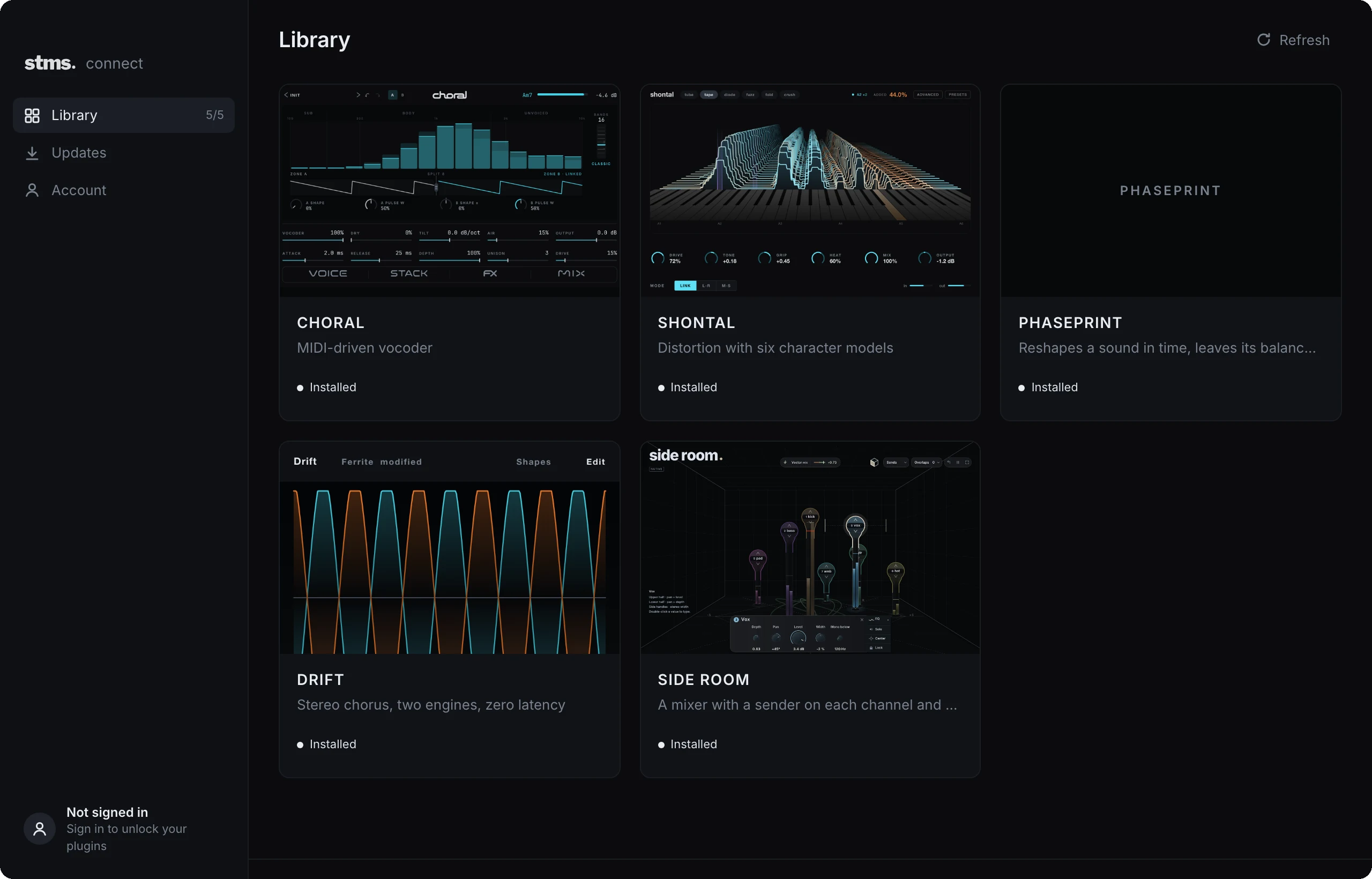
One app for your stms plugins. In development for macOS and Windows; get notified when it is ready.
Get release updates